· 8 min read
OBS Replay Buffer vs. Cloud Live Clipping: How to Clip Live Streams Without Lagging Your PC
Learn how to set up and tune OBS Replay Buffer step by step (including RAM sizing and hotkeys), and when broadcast, sports, and event teams should switch to cloud live clipping.
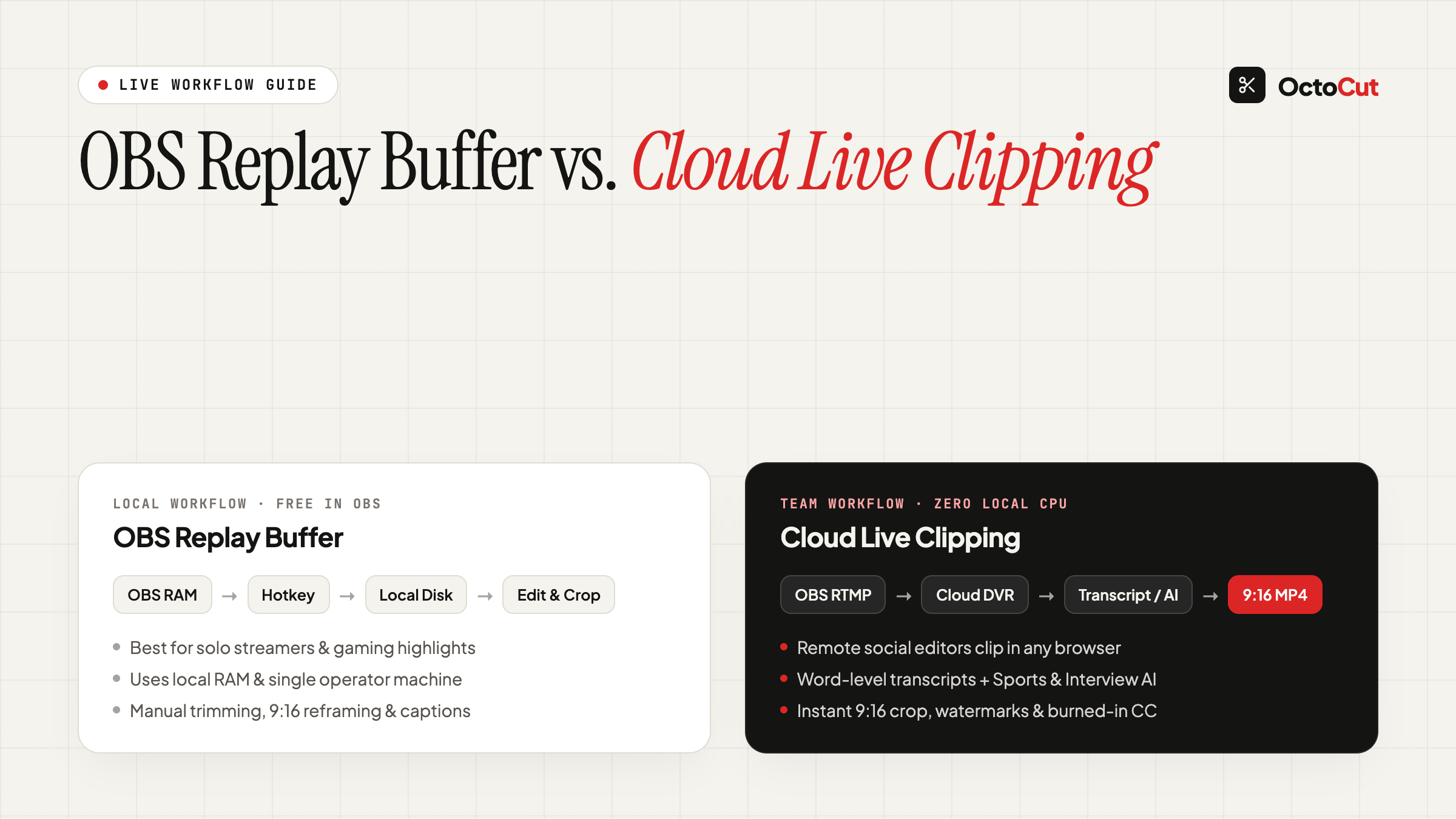
If you run live broadcasts through OBS Studio, OBS Replay Buffer is usually the first tool you reach for when you want to clip a live stream. It is built right into OBS, it is completely free, and with a single hotkey it dumps the last 30 to 60 seconds of video straight to your hard drive.
For a solo creator capturing a gaming play or a quick podcast moment, Replay Buffer is hard to beat. For a sports organization, conference producer, or media team trying to ship captioned 9:16 clips to X, Instagram Reels, and YouTube Shorts while a broadcast is still on air, local replay buffers hit a wall fast.
This guide walks through how to configure OBS Replay Buffer properly (including the exact RAM math and recording format settings), followed by an honest look at when to stay local and when to move to cloud live clipping.
What Is OBS Replay Buffer?
OBS Replay Buffer is a rolling ring buffer stored in your computer’s RAM (not on your SSD). While Replay Buffer is running, OBS continuously encodes the last N seconds of your canvas into memory and overwrites the oldest frames as new ones arrive.
Nothing touches your disk until you trigger the Save Replay hotkey. The moment you press it, OBS flushes the buffered video from RAM into a standalone clip file in your Recording Path.
How to Use OBS Replay Buffer (Step-by-Step)
You can set up Replay Buffer in OBS Studio in under two minutes:
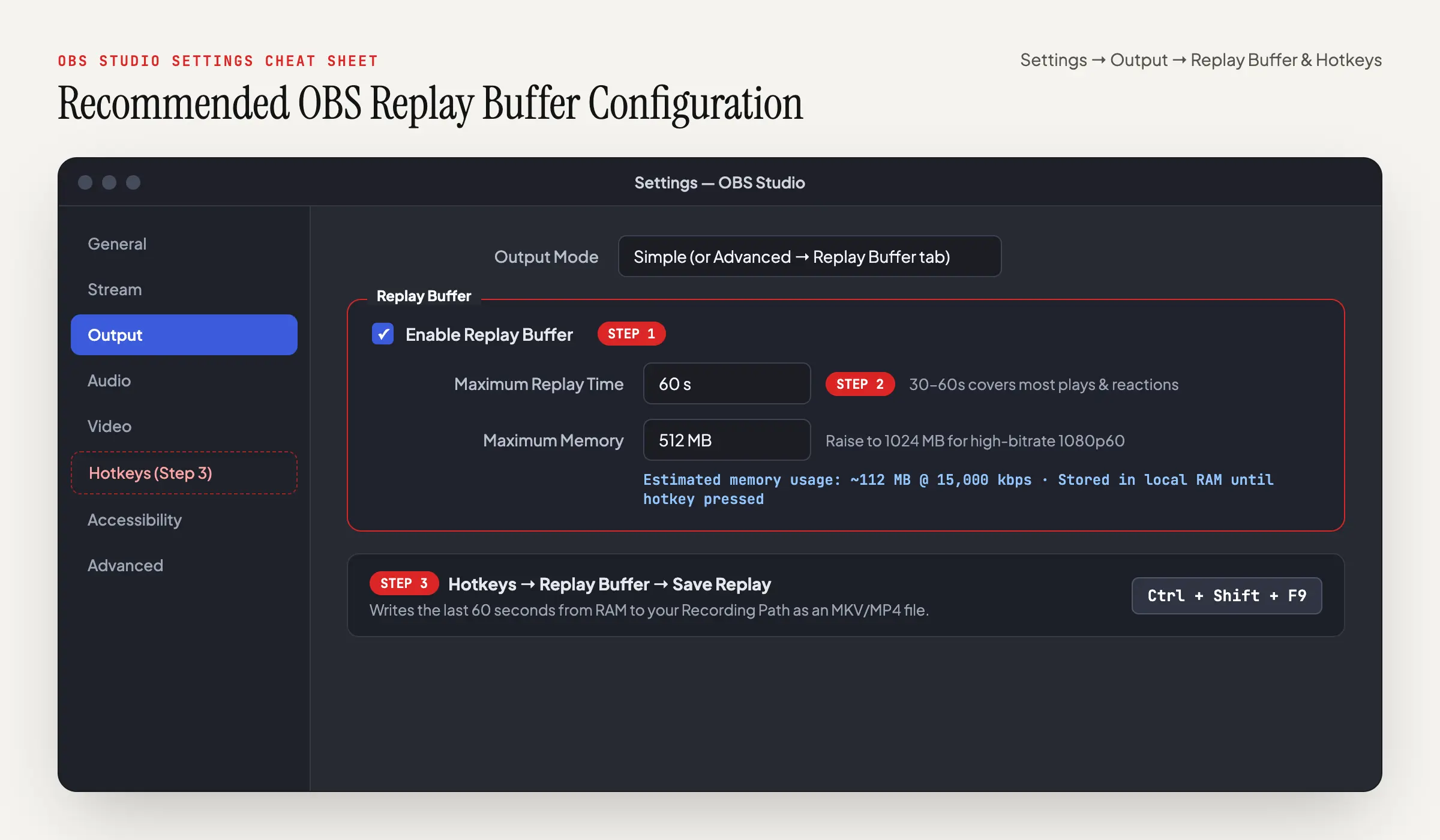
1. Enable Replay Buffer in Output Settings
- Open OBS Studio and click Settings in the bottom-right Controls dock.
- Select Output in the left sidebar.
- Choose either Simple or Advanced Output Mode:
- In Simple mode, scroll to the bottom and check Enable Replay Buffer.
- In Advanced mode, open the Replay Buffer tab and check Enable Replay Buffer.
2. Set Maximum Replay Time & Memory
- Maximum Replay Time: Set this between 30 and 60 seconds for sports plays, live reactions, or keynote soundbites. Longer windows (120–300 seconds) are tempting, but they quickly consume RAM and give you longer raw files to trim later.
- Maximum Memory: OBS defaults to 512 MB. If you record at 1080p60 with a high local bitrate (15,000–25,000 kbps), bump this to 1024 MB so OBS never silently shortens your replay window.
3. Pick a Crash-Safe Recording Format
Under Settings → Output → Recording, avoid standard .mp4. If OBS or your machine crashes mid-broadcast, an unfinalized MP4 file is corrupted. Use one of these instead:
- Hybrid MP4 / Fragmented MP4 (available in modern OBS 30+): crash-resilient and opens directly in Premiere, DaVinci Resolve, and CapCut without remuxing.
- MKV + Auto-Remux: check Automatically remux to mp4 under Settings → Advanced → Recording.
4. Assign a “Save Replay” Hotkey
- Go to Settings → Hotkeys.
- Scroll to Replay Buffer → Save Replay and assign a shortcut you won’t trigger by accident (for example,
Ctrl + Shift + F9or a dedicated Stream Deck button). - Click Apply and OK.
5. Start the Replay Buffer Before Going Live
Enabling the setting does not automatically turn Replay Buffer on. Before every broadcast, click Start Replay Buffer in the Controls dock (next to Start Streaming), or launch OBS with the --startreplaybuffer flag so you never forget during a show.
OBS Replay Buffer RAM & Bitrate Cheat Sheet
Because Replay Buffer lives in system memory, its footprint scales directly with your recording bitrate and buffer length:
RAM Usage (MB) ≈ Bitrate (kbps) × Duration (seconds) ÷ 8 ÷ 1024
| Stream / Recording Bitrate | 30-Second Buffer | 60-Second Buffer | 120-Second Buffer |
|---|---|---|---|
| 6,000 kbps (1080p30 standard) | ~22 MB | ~44 MB | ~88 MB |
| 12,000 kbps (1080p60 crisp) | ~44 MB | ~88 MB | ~176 MB |
| 20,000 kbps (High-motion sports) | ~73 MB | ~146 MB | ~293 MB |
| 40,000 kbps (1440p / 4K broadcast) | ~146 MB | ~293 MB | ~586 MB |
Tip on encoder load: If you set Recording Quality to Same as stream (Simple mode) or use the Use stream encoder option (Advanced mode), OBS reuses your existing hardware stream encode (NVENC / Apple VideoToolbox) for the Replay Buffer with almost zero extra GPU or CPU overhead. Only running a second, separate recording encoder causes noticeable frame drops.
5 Places Where OBS Replay Buffer Breaks Down
OBS Replay Buffer solves the capture problem on one computer. For live event and media teams, five operational bottlenecks show up immediately:
- Only the OBS operator can clip. Your technical director is already switching cameras, watching audio meters, and monitoring stream health. A remote social media manager cannot press your local hotkey or access your local
Videos/folder while the broadcast is live. - You still have to trim, crop to 9:16, and caption manually. Pressing Save Replay hands you a raw 60-second
16:9file with dead air at the start and end. Turning it into a tight9:16vertical Reel or YouTube Short with burned-in captions still means opening Premiere, CapCut, or DaVinci Resolve and re-exporting locally. - Missed hotkeys are gone for good. If a panelist drops a brilliant quote two minutes ago and nobody hit Save Replay inside the 60-second window, you have to wait until the full stream recording finishes to scrub back for it.
- No live transcript or AI highlight detection. At the end of a three-hour conference or match, you are left with 25 untitled
Replay 2026-11-23.mkvfiles and no way to search by spoken quote or jump straight to key moments. - Local disk & upload bottlenecks. Moving raw 200 MB clips off the broadcast machine over venue Wi-Fi to whoever runs the X and Instagram accounts slows down the exact five-minute window when fan engagement peaks.
OBS Replay Buffer vs. Cloud Live Clipping
| Capability | OBS Replay Buffer (Local) | Cloud Live Clipping (OctoCut) |
|---|---|---|
| Cost | Free (built into OBS) | Free sandbox ($0), $250/mo Broadcast, or $300 30-day Single Event pass |
| Who can create clips | Only the person at the OBS PC | Unlimited remote team members in any browser |
| DVR rewind window | Fixed 30–120s RAM buffer | Full live broadcast DVR timeline |
| Transcript clipping | None | Real-time word-level transcript — highlight text to clip |
| AI highlight detection | None | Built-in Sports & Interview AI highlight scoring |
| 9:16 vertical crop & captions | Manual in external NLE | Built-in 9:16 / 1:1 / 4:5 reframing, watermarks & burned-in CC |
| Local PC CPU / RAM impact | Uses local RAM & disk I/O | Zero local editing load — all rendering runs in the cloud |
| Best fit | Solo gaming / creator streams | Sports teams, conferences, live shows & agencies |
How to Clip Your OBS Stream in the Cloud Instead
If you want to keep OBS Studio as your broadcast switcher while offloading clipping, reframing, and captioning to your social team, the setup takes less than two minutes:
- Create a live RTMP source in OctoCut (or connect an existing HLS feed).
- Send your OBS stream to OctoCut via Settings → Stream → Custom (or push a parallel feed alongside YouTube/Twitch using the free obs-multi-rtmp plugin or Restream).
- Let your team clip from any browser while you stay focused on the show:
- Highlight the live transcript to turn any speaker quote or play-by-play call into a clip in one click.
- Review the live AI Queue (tuned for Sports or Interviews) to preview and accept scored moments automatically.
- Reframe to 9:16, toggle burned-in captions and channel watermarks, and download ready-to-post MP4s or GIFs while the broadcast is still live.
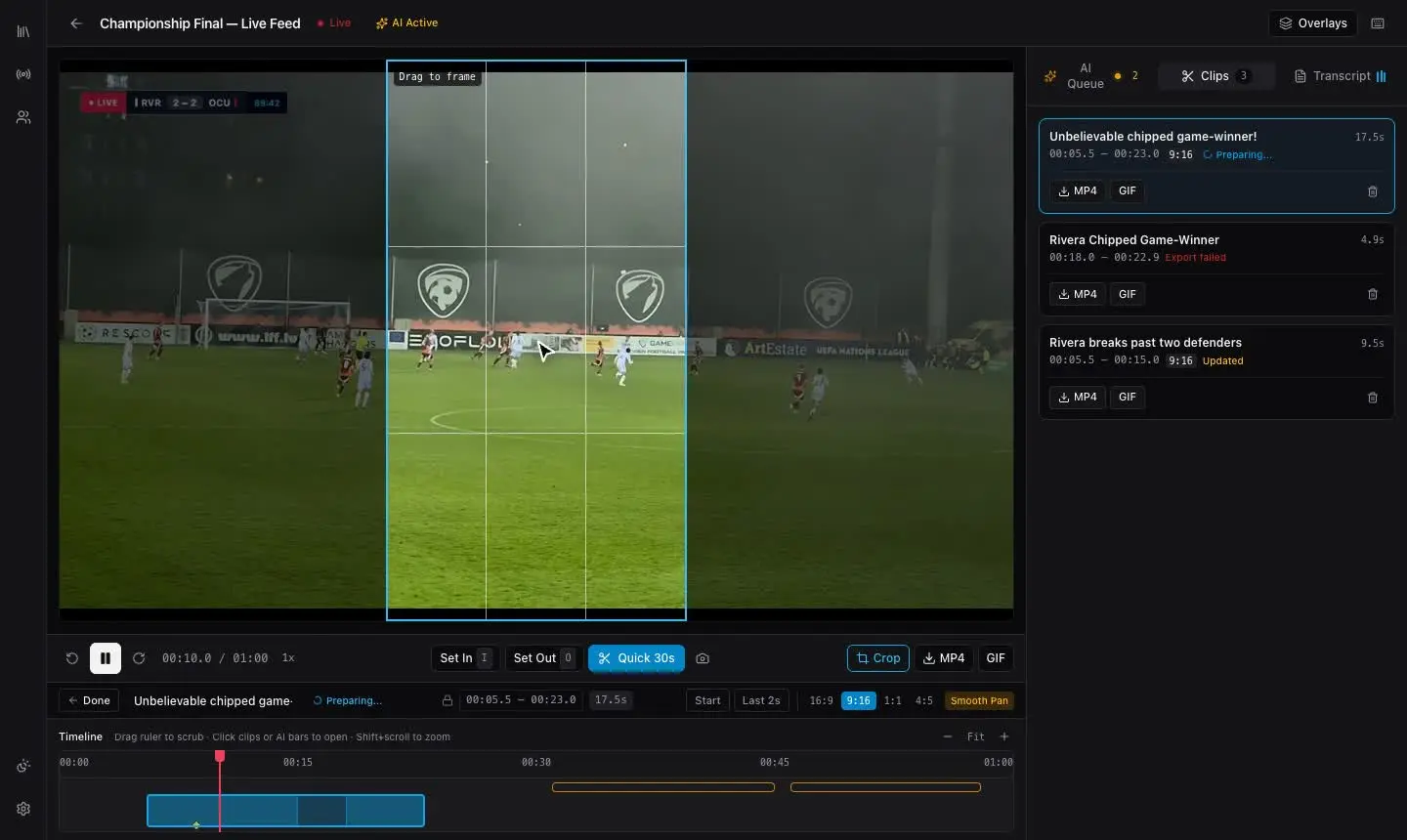
Because encoding, clipping, and MP4 export happen in the cloud, your OBS machine never slows down and your social team never touches a local video editor.
Frequently Asked Questions
Does OBS Replay Buffer lower FPS or lag my stream?
If you configure your Recording settings to use the same encoder as your stream (NVENC on NVIDIA GPUs, VideoToolbox on Apple Silicon, or AMF on AMD), OBS Replay Buffer adds virtually zero CPU/GPU load — it only uses RAM. Performance drops happen when you configure a separate high-bitrate software (x264) recording encoder alongside your stream.
How much RAM does a 60-second OBS Replay Buffer use?
At a standard 6,000 kbps bitrate, a 60-second Replay Buffer uses roughly 44 MB of RAM. At a crisp 15,000 kbps 1080p60 recording bitrate, 60 seconds uses around 112 MB. Raising Maximum Memory to 512–1024 MB gives plenty of headroom.
Can someone else clip my OBS stream remotely?
Not with OBS Replay Buffer alone, because the buffer only exists in RAM on the streaming PC and writes directly to that PC’s local disk. To let a remote producer or social media manager clip your OBS broadcast in real time, send your OBS feed via RTMP to a cloud live clipping studio like OctoCut.
Should I save OBS replays as MKV or MP4?
Use Hybrid MP4 / Fragmented MP4 in OBS 30+ (or MKV with Auto-Remux to MP4 enabled). Both protect your clips from corruption if OBS crashes, while giving you MP4 files that import cleanly into any editor or social platform.
Ready to Clip Live Streams Without Slowing Down OBS?
If you are clipping solo highlights after a stream, OBS Replay Buffer is a great free setup. If you are running a live sports broadcast, conference, or tournament where clips need to hit social feeds in 9:16 with captions while you are still on air, give OctoCut a try:
- Start free — no card required (test the Studio with our free sandbox, no watermark).
- View transparent pricing — $250/month for ongoing broadcasts or a $300 one-time 30-day Single Event pass with no annual lock-in.
Subscribe to our newsletter
Get the latest OctoCut product updates and news. No spam. Unsubscribe at any time.